Shivani
September 1, 2026
Workspaces and Computer Controls: NonBioS for Portfolio Hackers
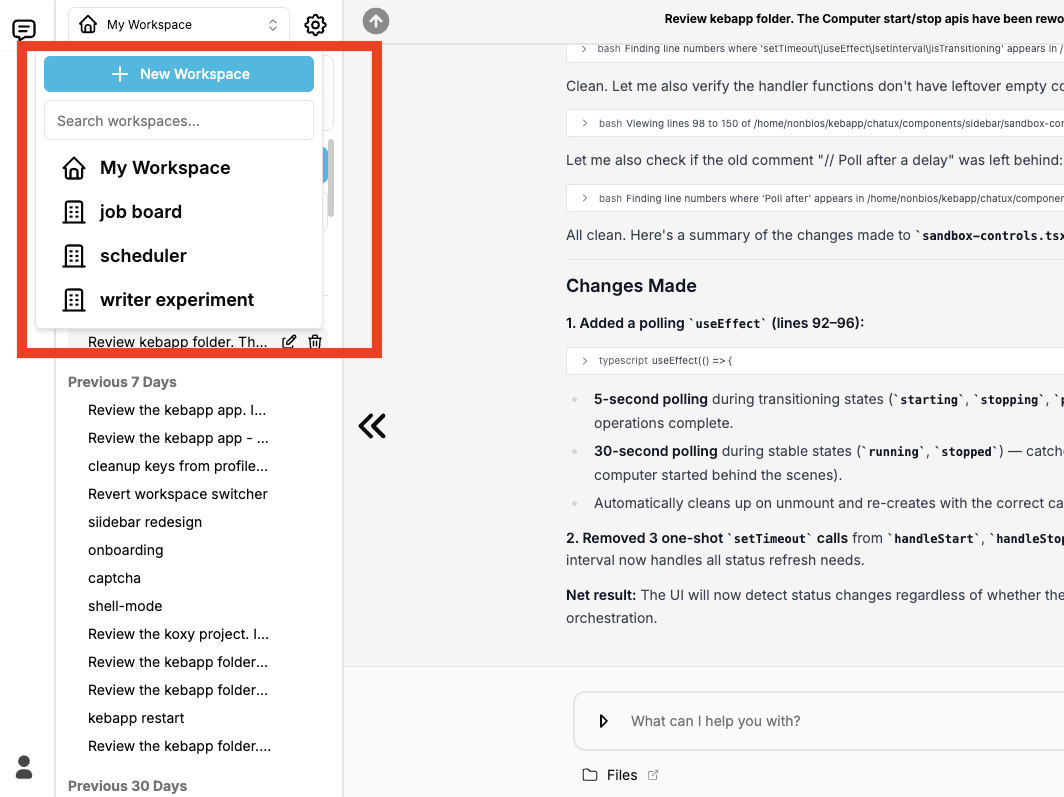
Two shipped features: multiple workspaces, one per project - and a real power switch for your computer.


We noticed many NonBios users were asking the same question: "How do I debug issues when my app doesn't work as expected?" So we created a tutorial.
Author:
Published:
Updated:

Your button won't click. Your graphics won't load. Your form won't submit.
If you've built with NonBioS (or any AI coding tool), you've been here. The AI has done incredible work - the backend is solid, the architecture is clean, the code is well-structured. But something on the frontend isn't working, and you're not sure how to communicate the problem.
Here's what's really happening, and more importantly, how to fix it.
The Architecture Gap: Why AI Can't See Your Browser
To understand the solution, we need to understand the architecture.
NonBioS operates in a private Linux environment - essentially a virtual machine where it has complete control. In this environment, NonBioS can:
This architecture is what makes NonBioS so powerful. It's not just generating code snippets - it's actually building and running your application in a real Linux environment.
What NonBioS Can't Do
But there's one critical limitation: NonBioS cannot run a browser.
This means NonBioS has no visibility into:
Think about it: NonBioS can write perfect JavaScript, but it can't see if that JavaScript throws an error when it runs in your browser. It can create beautiful CSS, but it can't see if there's a rendering conflict. It can build complex frontend logic, but it can't see if a click handler fails to attach.
Even though we do plan for NonBioS to be able to operate browsers in the future, at this point ot time, NonBioS, and most other AI coding tools operate on the backend for security, performance, and architectural reasons. This means that effective AI-assisted development requires collaboration.
You bring: Vision, creativity, and eyes on the browser. NonBioS brings: Code execution, debugging logic, and rapid iteration
When you understand this dynamic, debugging becomes simple.
Here's the workflow that thousands of NonBioS users rely on daily.
Step 1: Open Developer Tools
When your application isn't working as expected, right-click anywhere on the page and select "Inspect" (or press F12 on Windows/Linux, Cmd+Option+I on Mac).
This opens your browser's Developer Tools—a built-in debugging interface that every modern browser includes.
Step 2: Navigate to Console
Click the "Console" tab at the top of the Developer Tools panel.
This is where your browser logs every error, warning, and message that occurs during your application's execution. Think of it as a real-time error log for everything happening on the frontend.
Step 3: Copy the Error Messages
You'll see a list of messages in the console. Look for anything marked in red (errors) or yellow (warnings).
Select all the relevant error messages. Right-click and choose "Copy", or use Ctrl+C (Windows/Linux) or Cmd+C (Mac).
Don't worry about understanding the errors - just copy everything you see. The error messages contain crucial information:
Step 4: Share with NonBioS
Return to your NonBioS chat and paste the error messages directly into the conversation.
You can simply paste them, or add context like:
Step 5: Let NonBioS Fix It
NonBioS will analyze the error messages, identify the problem in the code, and automatically implement a fix. The entire process typically takes 10-30 seconds.
Then, refresh your browser, and the issue should be resolved. In rare cases, there might be multiple errors so you might have to do this process more than once. But NonBioS will be able to work through these errors one-by-one and fix them all.
Real-World Examples
Let's walk through two common scenarios that demonstrate this workflow in action.
Example 1: 3D Graphics Won't Load
The Situation:A user asked NonBioS to build a BMW M4 component analyzer with an interactive 3D model. The interface loaded beautifully—sidebar navigation, component systems, specifications panel—everything looked great. But the main 3D visualization was just a black rectangle with an error message: "Failed to load application."
The Problem:Looking at the browser console revealed several JavaScript errors:
Uncaught SyntaxError: Unexpected token 'export'
Uncaught SyntaxError: Unexpected token '<'
Failed to initialize BMW M4 Analyzer: TypeError: this.createBMWM4Model is not a function
The errors indicated that NonBioS had written the 3D rendering code, but there were module loading issues and a function that wasn't properly initialized.
The Solution:The user copied these errors and pasted them into NonBioS chat. NonBios immediately identified the problems:
Within 20 seconds, NonBioS had fixed all three issues, pushed the changes, and the 3D model rendered perfectly.
Key Insight:Without the console errors, the user might have said "the 3D model won't load," which is vague. The error messages gave NonBioS precise information about what failed and where, enabling an instant fix.
Example 2: Button Won't Respond
The Situation:An AI/ML learning platform was built with a multi-step assessment flow. The interface was polished - modal dialogs, form inputs, styled buttons. But when users clicked "Continue to Detailed Assessment," nothing happened. No navigation, no error message, just... nothing.
The Problem:The console revealed:
Uncaught SyntaxError: Unexpected token 'J'
Uncaught ReferenceError: proceedToDetailedAssessment is not defined
at HTMLButtonElement.onclick (index.html:137:13)
The button's click handler was trying to call a function that didn't exist, and there was also a syntax error earlier in the JavaScript file preventing proper execution.
The Solution:User copied the errors, pasted them to NonBioS. NonBioS traced the problem:
NonBioS fixed the syntax error, properly defined the function, and ensured the click handler was correctly attached. Button worked perfectly after refresh.
Key Insight:Silent failures are the hardest to debug - things that simply don't work without any visible error. But the console always knows. By checking the console first, you bypass the guessing game.
Why This Works: The Technical Explanation
Let's dig deeper into why this debugging workflow is so effective. Modern browsers capture an incredible amount of information in their consoles, including syntax errors (mistakes in JavaScript syntax that prevent code from parsing), reference errors (attempts to use variables or functions that don't exist), type errors (operations on values of the wrong type), network errors (failed HTTP requests, CORS issues, 404s), warnings (non-fatal issues that might cause problems), and custom logs (any console.log() statements in the code). This comprehensive logging means that almost every frontend issue leaves a trail in the console.
Console errors aren't just vague descriptions - they're highly structured, providing the error type (such as Syntax, Reference, Type, or Network), a clear description of what went wrong, the file and line number where the error occurred, and a stack trace showing the sequence of function calls that led to it. This precise structure gives AI tools like NonBioS the exact context needed to locate and fix problems.
When you paste console errors into NonBioS, you're giving it data in a format it understands extremely well. NonBioS can parse the error type to grasp the category of problem, locate the exact file and line number in the codebase it created, trace the stack to understand the execution flow, pattern-match against common error scenarios, and generate and test a fix. This is fundamentally different from describing the problem in natural language - for instance, "The button doesn't work" could mean hundreds of different things, whereas "Uncaught ReferenceError: proceedToDetailedAssessment is not defined" is precise and actionable.
The feedback loop is also instant. Traditional debugging often involves noticing a problem, reproducing it, hypothesizing the cause, testing the hypothesis, implementing a fix, and testing the fix again. With the NonBioS console workflow, you simply notice the problem, copy the console error, paste it to NonBioS, and refresh the page - steps 3 through 6 of traditional debugging are automated, as NonBioS handles the hypothesis, implementation, and often gets it right on the first try.
Beyond Simple Errors: Advanced Use Cases
The console debugging workflow isn't just for obvious errors. It's valuable in several advanced scenarios.
Performance Issues
Console warnings often reveal performance problems:
Sharing these warnings with NonBioS can lead to performance optimizations you might not have known to ask for.
Third-Party Integration Problems
When integrating external APIs or libraries, console errors often reveal:
These are perfect candidates for the console-to-NonBioS workflow, as they require understanding both your code and the external system.
Browser Compatibility
Sometimes code works in one browser but fails in another. Console errors in the failing browser can help NonBioS:
Complex State Management
In applications with complex state (multiple components, data flows, async operations), console errors can reveal:
Common Errors and What They Mean
Understanding error types helps you know what to look for in the console.
Syntax Errors
Uncaught SyntaxError: Unexpected token '{'
What it means: The JavaScript code has a syntax mistake—a typo, missing bracket, incorrect punctuation.
Why it happens: Usually occurs when NonBioS generates code with minor formatting issues or when combining multiple code blocks.
How NonBioS fixes it: Locates the exact line, corrects the syntax, ensures proper code structure.
Reference Errors
Uncaught ReferenceError: myFunction is not defined
What it means: Code is trying to use a variable or function that doesn't exist.
Why it happens: Function definitions might be missing, in the wrong scope, or not loaded yet.
How NonBioS fixes it: Defines the missing function, adjusts scope, or reorders code execution.
Type Errors
Uncaught TypeError: Cannot read property 'map' of undefined
What it means: Code is trying to perform an operation on a value of the wrong type (like calling .map() on something that isn't an array).
Why it happens: Data might not have loaded yet, API responses might have unexpected structure, or initial state might be undefined.
How NonBioS fixes it: Adds defensive checks, ensures proper initial values, validates data structure.
Network Errors
Failed to load resource: the server responded with a status of 404
What it means: A request to load a file, image, or API endpoint failed.
Why it happens: File paths might be incorrect, resources might be missing, or API endpoints might be misconfigured.
How NonBioS fixes it: Corrects file paths, ensures resources exist, debugs API routing.
Best Practices for Effective Debugging
Here are some tips to make your debugging workflow even more effective.
1. Copy All Console Output
Don't try to filter or interpret - just copy everything. Sometimes the real problem is in the 3rd or 4th error message, not the first one. NonBioS can parse the full context better than you can quickly filter it.
2. Check Console Immediately
Make it a habit: when you open an app NonBioS built, open the console at the same time. Many errors appear on page load, before you even interact with the page.
3. Clear Console Between Tests
After NonBioS fixes an issue and you refresh, clear the console (usually a 🚫 icon or "Clear console" button). This ensures you're only seeing new errors, not stale ones from before the fix.
4. Add Context When Needed
While console errors are often self-explanatory, adding context helps:
5. Test After Each Fix
After NonBioS fixes an issue, test that specific functionality before moving on. This prevents confusion about whether a later problem is new or related to the previous fix.
6. Use Network Tab for API Issues
If the console shows network errors, check the Network tab in Developer Tools. You can see the exact request and response, which is valuable information for NonBioS when debugging API integrations.
When This Workflow Isn't Enough
The console debugging workflow solves most frontend issues, but not everything. Here's when you might need additional approaches.
Visual/Layout Issues
If your layout looks wrong but there are no console errors, describe what you see:
NonBioS can fix these based on description alone, as they're typically CSS issues that don't throw JavaScript errors.
Logic Errors
Sometimes code runs without errors but produces wrong results:
For these, describe the expected vs. actual behavior. Console errors won't appear because the code is executing successfully—it's just doing the wrong thing.
Performance Problems
If the app is slow but not broken, console errors won't help much. Instead:
UX/Design Improvements
If something works but could be better, that's not a debugging issue - it's a refinement. Just ask NonBioS directly for the improvement you want.
Despite the hype, AI coding tools aren't fully autonomous. They need human feedback, human judgment, and human eyes. The developers who are most successful with AI tools are those who understand:
The console debugging workflow is a perfect example of bridging this gap.
The initial version of any software is never perfect. What matters is the speed of the feedback loop:
With the console workflow, this loop can be measured in seconds, not hours or days.
AI coding tools like NonBioS have democratized software development. You don't need years of programming experience to build sophisticated applications. But you do need to understand how to collaborate effectively with your AI partner.
The debugging workflow we've outlined - right-click, inspect, copy, paste - is the single most valuable skill for NonBioS users. It transforms frustrating moments of "why isn't this working?" into quick, actionable fixes.
More importantly, it exemplifies the future of development: humans and AI working together, each contributing what they do best. You bring vision, creativity, and the ability to see and experience your application. NonBioS brings execution speed, debugging logic, and tireless iteration.
Quick signup, give NonBioS a high-level instruction, see progress within minutes. Your first multi-hour session is on the house.
No Credit Card Required